Inventory Optimization: Obsolete Detection & Reorder Suggestions
What is this?
Your parts inventory just got smarter. Clue now tracks how your parts actually move: what gets used, what sits on the shelf, and what needs restocking. Instead of guessing which parts to reorder or wondering what is collecting dust in the warehouse, the system does the math for you.
Three things are new. Parts that nobody has used in over a year get flagged as obsolete. Parts where the reorder point looks off get a suggested adjustment. And every part now shows consumption analytics: when it was last used, how fast it moves, and its turnover ratio.
Who is this for?
- Parts Managers - Spot dead inventory you can clear out. Accept reorder suggestions instead of manually tracking usage patterns.
- Shop Managers - See at a glance which parts move and which ones sit. Make stocking decisions based on real data, not gut feeling.
- Mechanics - Fewer stockouts on the parts you actually need. The system keeps reorder points aligned with real demand.
How to use it
Step 1: Open Parts Inventory
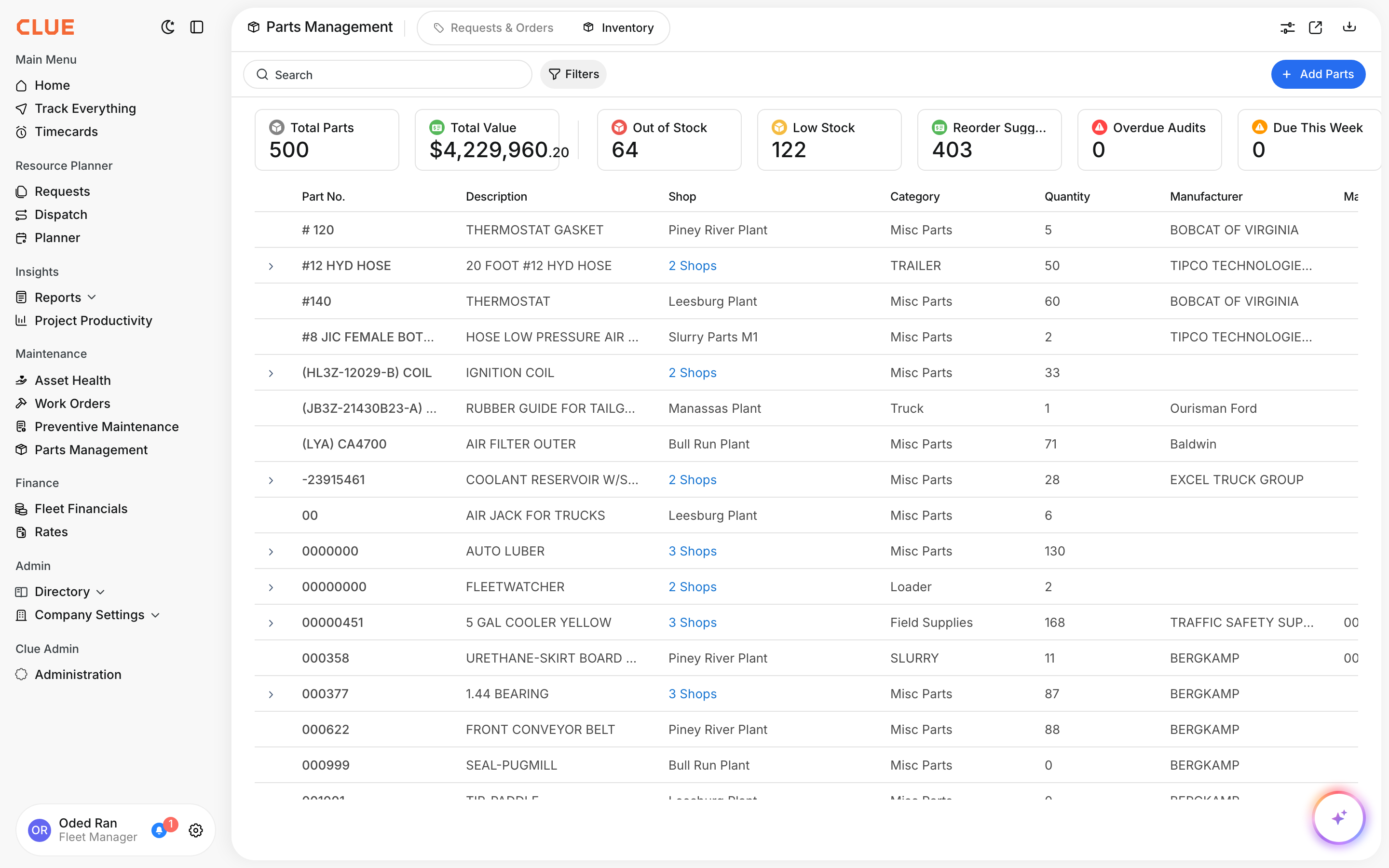
Go to Parts Management in the sidebar, then click the Inventory tab. The summary cards at the top now include Reorder Suggested, showing how many parts have a recommendation waiting.
Step 2: Filter for what matters
Click Filters. You will see two new options under Inventory Status: Obsolete and Reorder Suggested. Check Obsolete to see only parts with zero usage in the last 12 months. Check Reorder Suggested to see parts where the system recommends a different reorder point.

Step 3: Expand a row for shop details
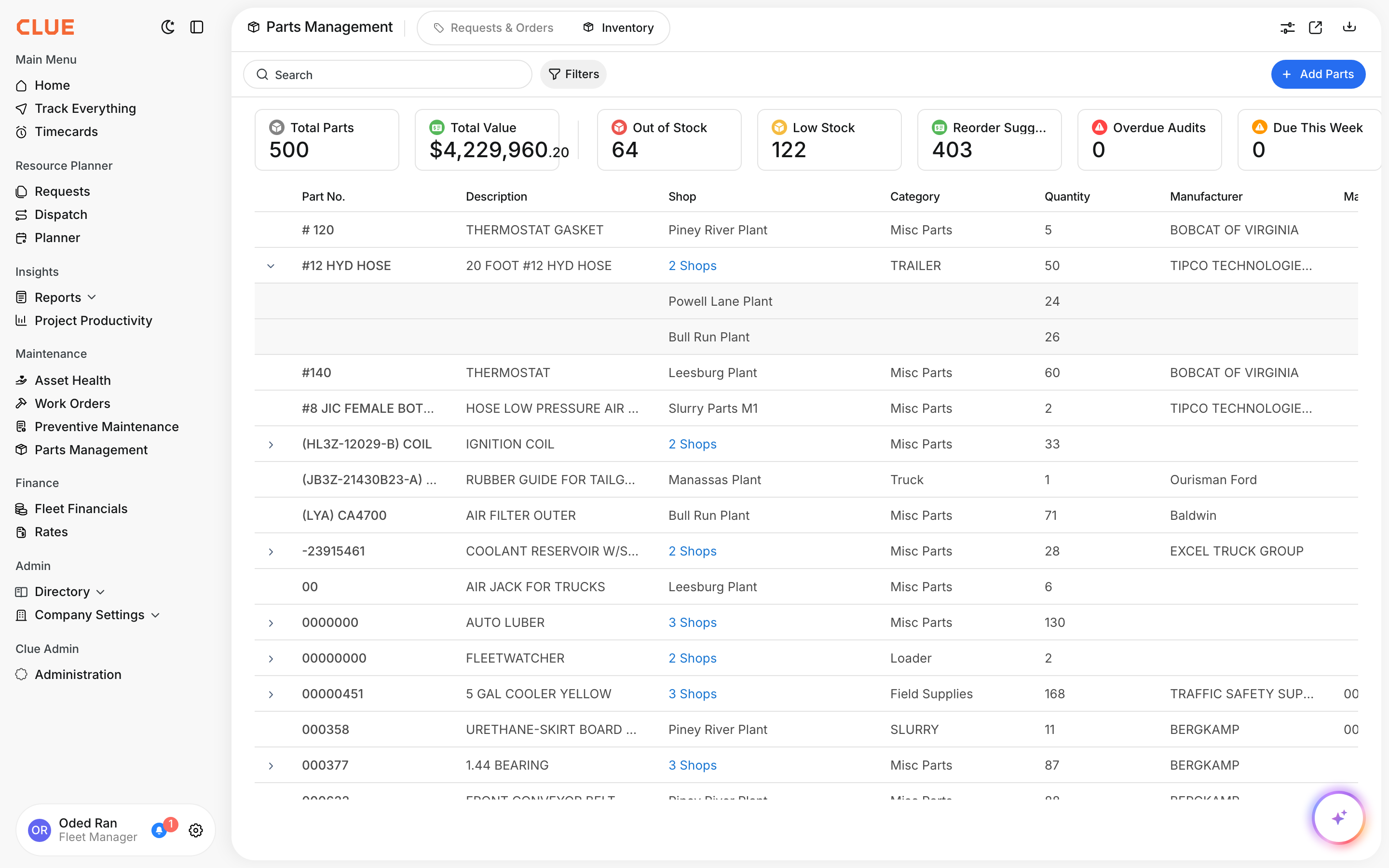
Click any part row to expand it. You will see inventory levels broken down by shop: quantity on hand, which shops carry it, and where stock is running low.
Step 4: Open part details for analytics
Click a part name to open the detail panel. Scroll down to see the new consumption analytics: when the part was last used, average monthly consumption, and turnover ratio. If the system has a reorder suggestion, you will see a blue callout with the recommended value and a one-click Accept button.

The full details
- Works on: Web app
- Obsolete means: Zero consumption across all shops for 12+ months. The flag clears automatically if someone uses the part.
- Reorder suggestions are per shop. Each location has its own recommendation based on that shop's consumption rate.
- The math: Suggested reorder point = average monthly consumption x 1.5 months lead time + 20% safety buffer.
- Minimum data needed: Parts with less than 3 months of history do not get reorder recommendations.
- Accepting a suggestion updates the reorder point immediately. You can always change it later.
- New column available: "Last Consumed" can be added to the table (hidden by default). Go to column settings to enable it.
- Permissions: Same as existing Parts Management access. No new permissions needed.
Tips
- Start with the Obsolete filter. It is the fastest way to find warehouse space and budget you can reclaim. Sort by value to tackle the expensive stuff first.
- Review suggestions before accepting. The system bases recommendations on the last 6-12 months. If you know a seasonal spike is coming, you may want to keep a higher reorder point.
- Enable the Last Consumed column for a quick scan without opening each part. Sort by it to find your least-active inventory.
- Check multi-shop parts carefully. A part might be obsolete at one shop but in high demand at another. The obsolete flag is company-wide, but reorder suggestions are per shop.


