Adding Parts Kits to Work Orders
What is this?
Instead of adding parts to a work order one at a time, you can apply an entire kit in one action. Click Add Kit, pick the one you need, and every part in that kit lands on the work order with the correct quantities. A job that used to take 10 clicks now takes 2.
Who is this for?
- Mechanics - Get all the parts you need on a work order without remembering every filter, gasket, and seal.
- Dispatchers - Set up work orders with the right parts before the mechanic even starts.
- Parts Managers - Make sure the correct parts are requested every time, not whatever someone remembers.
How to use it
Step 1: Open a work order
Go to Work Orders and open any work order. Scroll down to the Parts section. You will see two buttons: Add Kit and Add Part.

Step 2: Browse and select a kit
Click Add Kit. A panel slides in showing all available kits. Each card shows the kit name, description, and item count. Use the search bar to find a specific kit.

Step 3: Preview the kit contents
Click a kit to see what is inside. The panel shows every part with its part number and quantity. Review it to make sure it is the right kit for this job.
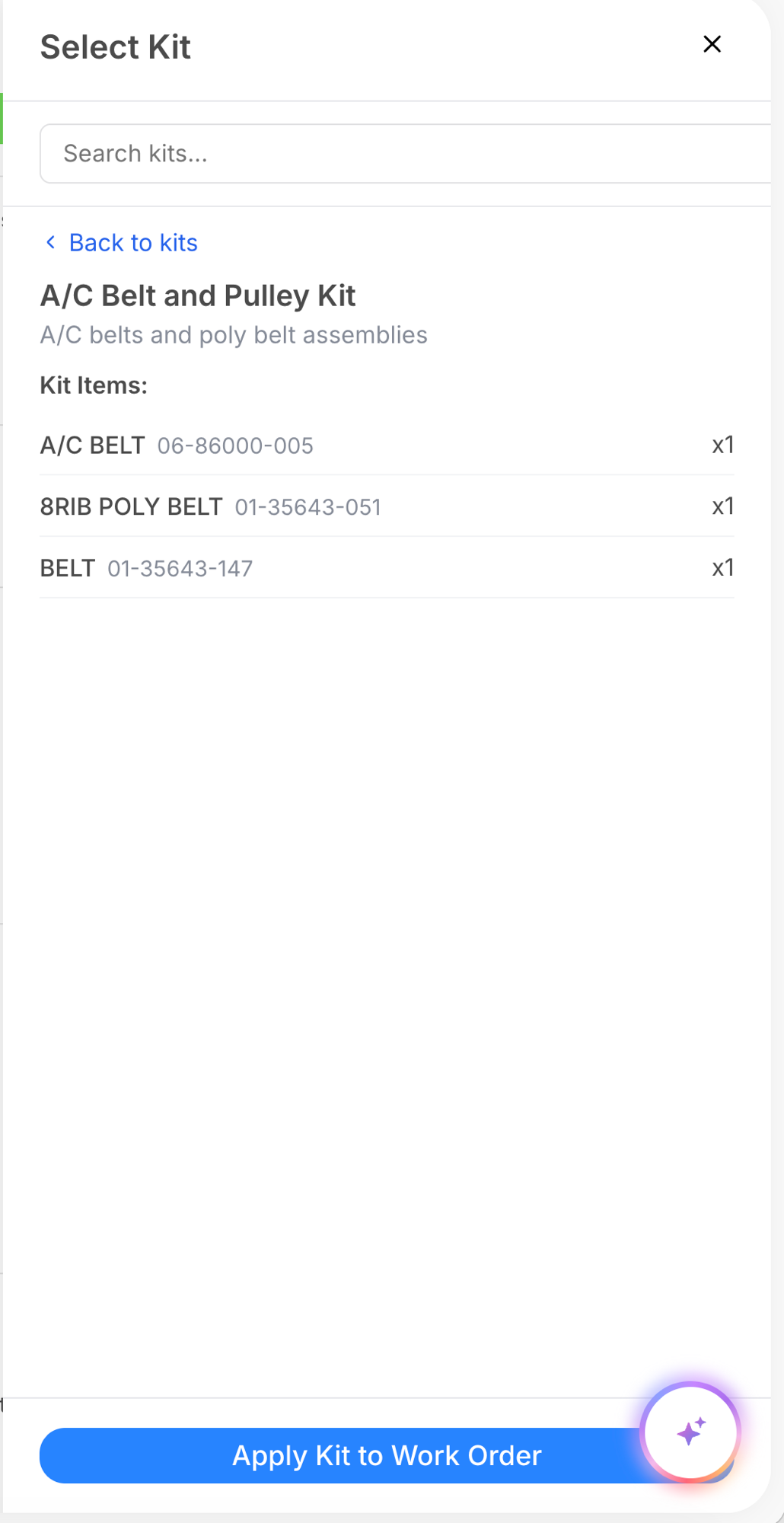
Step 4: Apply the kit
Click Apply Kit to Work Order. All parts are added to the work order at once with the correct quantities. Each part appears as a separate line item you can edit individually.

The full details
- Works on: Web app
- One-time copy: Applying a kit copies the parts to the work order. There is no ongoing link. Editing the kit later does not change existing work orders.
- Each part becomes its own line item. After applying, you can change quantities, add notes, or remove individual parts.
- You can apply multiple kits to the same work order. Need filters and belts? Apply both kits.
Tips
- Search by the equipment model. If your kits are named well ("Cat 336 Oil Kit"), just type "336" in the search and you will find it.
- Check the preview before applying. One glance confirms you picked the right kit. Faster than undoing the wrong one.
- Apply the kit first, then customize. If this job needs an extra part beyond the kit, apply the kit and then use Add Part for the extras.


