First-Time Login Guide
Getting Started
Reading Time:
3 min read
Welcome to CLUE
This guide will help you log in and get started with CLUE for the first time.
Accessing CLUE
Open your web browser and go to my.getclue.com
Logging In
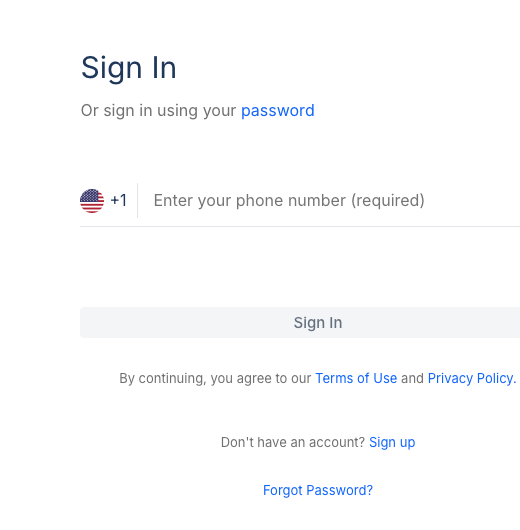
- Enter your phone number in the login field
- Click Sign In
- Check your phone for the SMS verification code
- Enter the 6-digit code and click Verify
Alternative: Password Login
If you prefer, click Or sign in using your password to use email and password instead of SMS verification.
First-Time Setup
On your first login, you may be asked to:
- Confirm your name and email
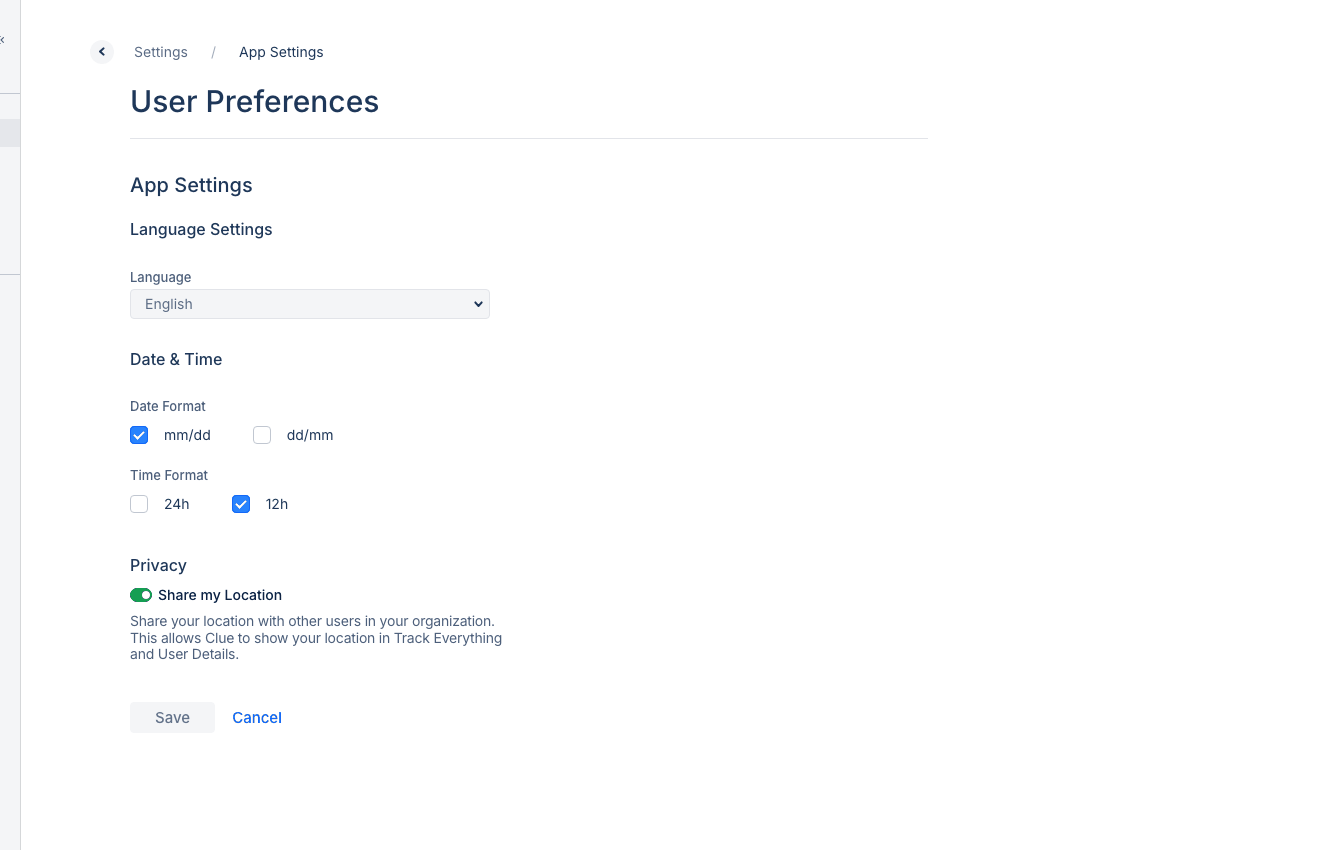
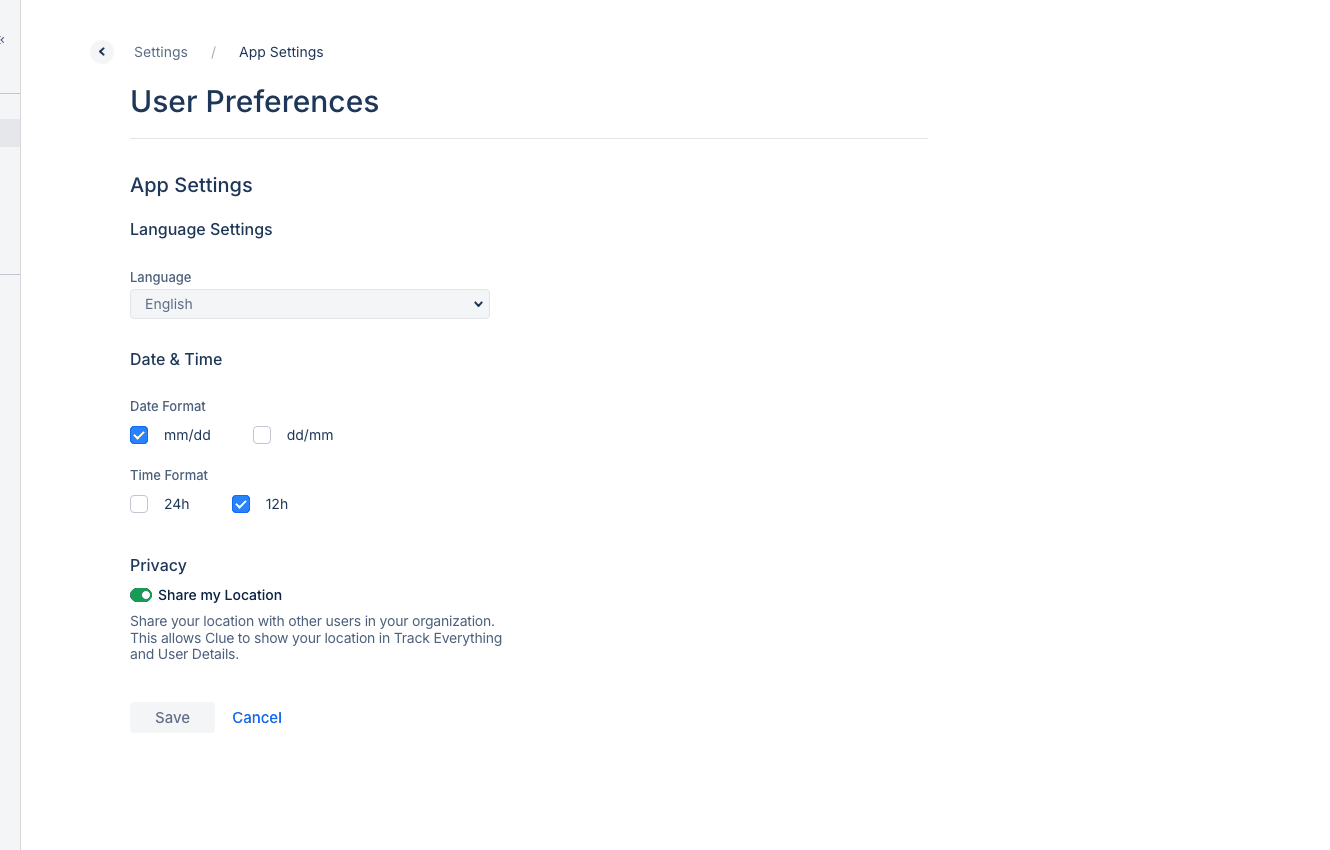
- Set your notification preferences
- Select your default organization (if you have access to multiple)
Browser Requirements
CLUE works best with modern browsers:
- Google Chrome (recommended)
- Safari
- Microsoft Edge
- Firefox
Mobile Access
CLUE is also available as a mobile app. Download from the App Store (iOS) or Google Play (Android) for field access.
Need Help?
Contact your administrator or CLUE support if you have trouble logging in.