Creating Equipment Requests
Use Equipment Requests when a field team needs equipment for a project but does not assign it directly themselves. The request goes to the team managing dispatch, so they can review it, fill it, and keep the assignment tied to the project.
Overview
Equipment Requests give project teams a simple way to ask for the equipment they need. Instead of handling the dispatch themselves, they can submit a request with the dates, quantity, and project details, then the resource team can review it and move it forward in Dispatch.
This works well alongside Creating a New Dispatch, Dispatching Assets to Projects, and Managing Request Statuses, since the request becomes the starting point for getting the right equipment to the right site.
Step 1: Navigate to Requests
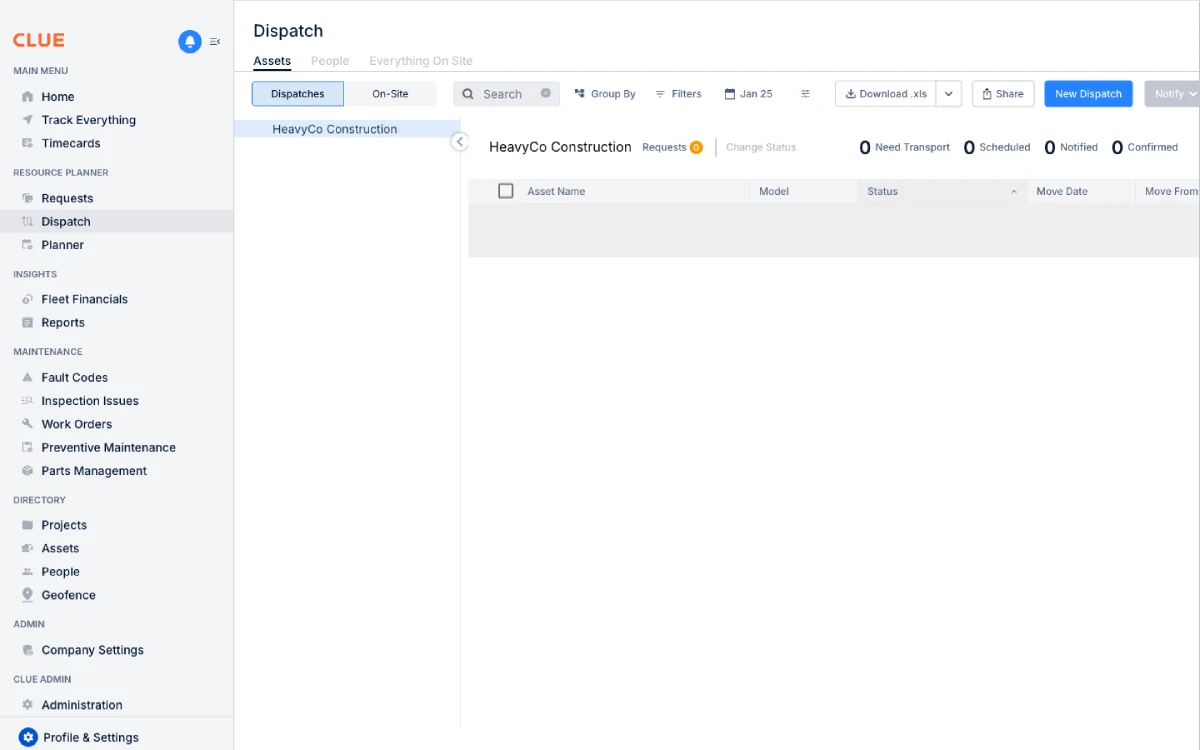
Start in the Resource Planner section, then open Requests from the sidebar. The page includes separate tabs for Assets and People requests, so you can stay focused on equipment requests when that is all you need to review.
At the top of the page, the status bar helps you see request counts at a glance. Depending on the request stage, you may see statuses like Cancelled, Filled, Open, Drafts, and Requested.
Step 2: Click New Request
Once you are on the Requests page, click New Request in the top-right corner. This opens the request form where you can enter the equipment details and timing for the job.
Step 3: Fill Out the Form
The request form collects the main details the dispatch team needs in order to review and fulfill the request. The more accurate the request is, the easier it is to match the right equipment to the project.
Request Details
These are the main fields used to define what is needed and when it is needed:
- Asset Type - the type of equipment requested, such as an excavator or loader
- Project - the project that needs the equipment
- Qty - how many units are needed
- From - when the equipment is needed
- Until - when the equipment will be returned or no longer needed
Optional Details
These fields help the dispatch team understand the request more clearly and avoid delays:
- Product Class - a more specific classification inside the asset type
- Dropoff Location - where the equipment should be delivered
- Contact Person - who should be contacted on site
- Contact Phone Number - the best number for delivery coordination
- Notes - any special instructions or jobsite details
If your team already uses Asset Types and Categories or Equipment Classification: Categories, Types and Product Classes, choosing the right asset type and product class here helps the request get filled more accurately.
Step 4: Submit the Request
After the details are entered, click Submit to send the request for review. Once submitted, it appears in the Requests list so the dispatch team can track it and move it toward fulfillment.
Request Status Flow
Requests move through statuses as they are reviewed and filled. These statuses help both the field team and the dispatch team see where the request stands without needing to open each one individually.
Common statuses include:
- Drafts - the request was started but not submitted
- Requested - the request was submitted and is waiting for review
- Open - the request is being worked on or processed
- Filled - the equipment has been assigned
- Cancelled - the request is no longer needed
Tips
A clear request is usually filled faster than a vague one. Good dates, contact details, and equipment details make it easier for the dispatch team to send the right unit the first time.
- include contact details so delivery is easier to coordinate
- be specific about the Asset Type and Product Class
- add notes about access limits, delivery windows, or site rules
- submit requests early so there is time to review and fill them
- check Managing Request Statuses if you need to follow the request after submission