Fleet Financials: Fleet Overview
Most equipment teams know what their machines cost to run. Far fewer know whether those machines are actually profitable. Fleet Financials: Fleet Overview is CLUE's financial command center for your equipment, giving you a complete picture of revenue, total cost, and profitability across your entire fleet in one view.
Start at the fleet level to see overall performance, then drill into divisions, product classes, and individual assets to find exactly where the numbers break down. Financial data is imported from your accounting system via CSV, so the analysis is based on your actual figures rather than estimates.
Who Is This For?
- Equipment Managers use the Fleet Overview to identify which divisions or product classes are underperforming and where costs are running ahead of revenue.
- CFOs and Finance Teams use it to monitor overall fleet profitability, track utilization against financial performance, and make fleet investment decisions based on real cost and revenue data. This connects to CLUE's reporting and analytics for broader financial visibility.
- VP Operations and Executives use the top-level summary to get a fast read on fleet financial health without having to dig into individual asset records.
How to Use It
1. Open Fleet Overview
Click on Fleet Financials in the sidebar. The Fleet Overview displays summary cards showing Total Revenue, Total Cost, and Profitability across the fleet, along with a trend chart and performance indicators for Not Profitable assets and underutilized equipment.

2. Import Your Data
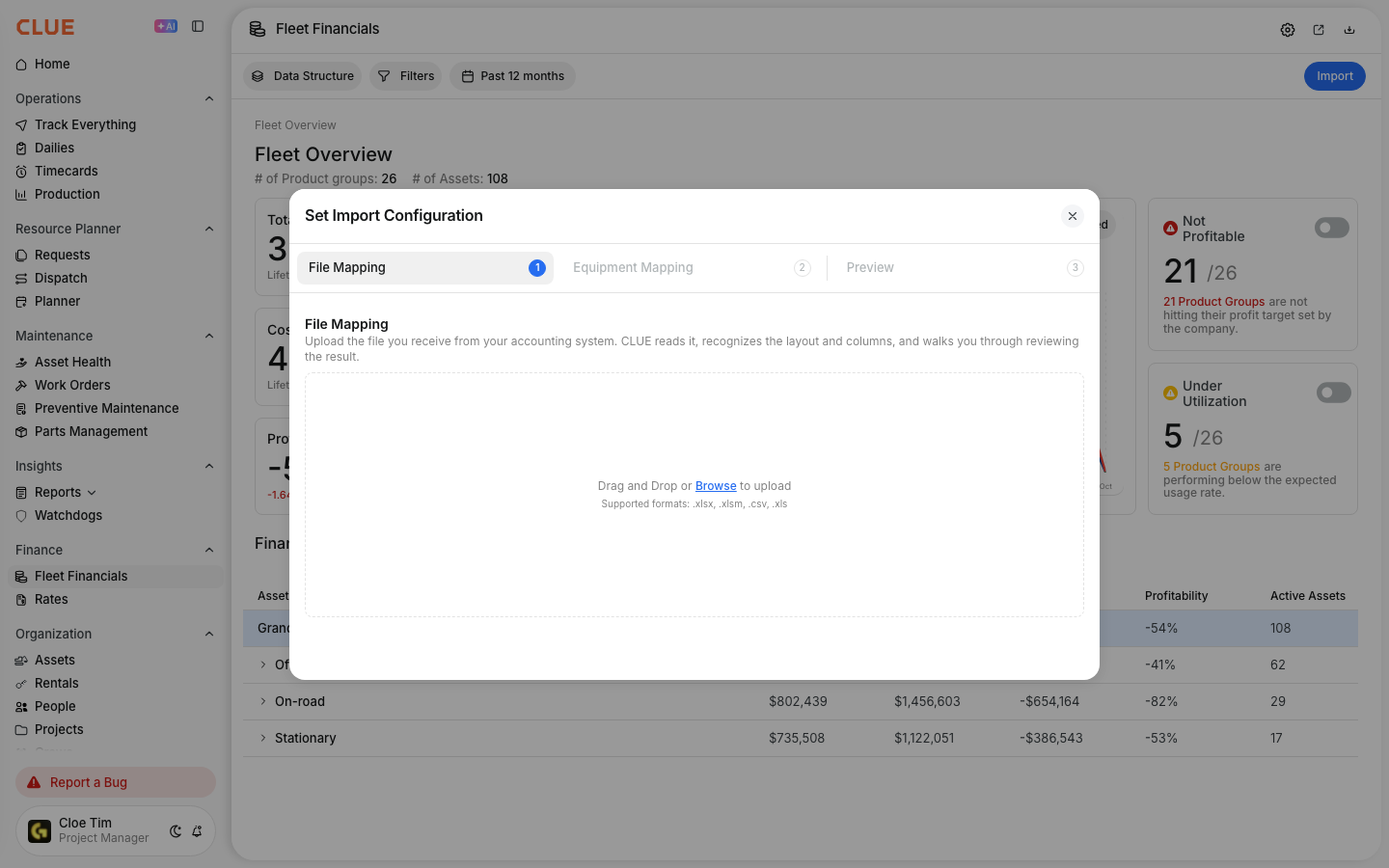
Click on the Import button in the top right to upload financial data from CSV. Download the template first to see the required format. This is how revenue, costs, depreciation, and other financial data from your accounting system gets into CLUE for analysis.
3. Look Into Divisions
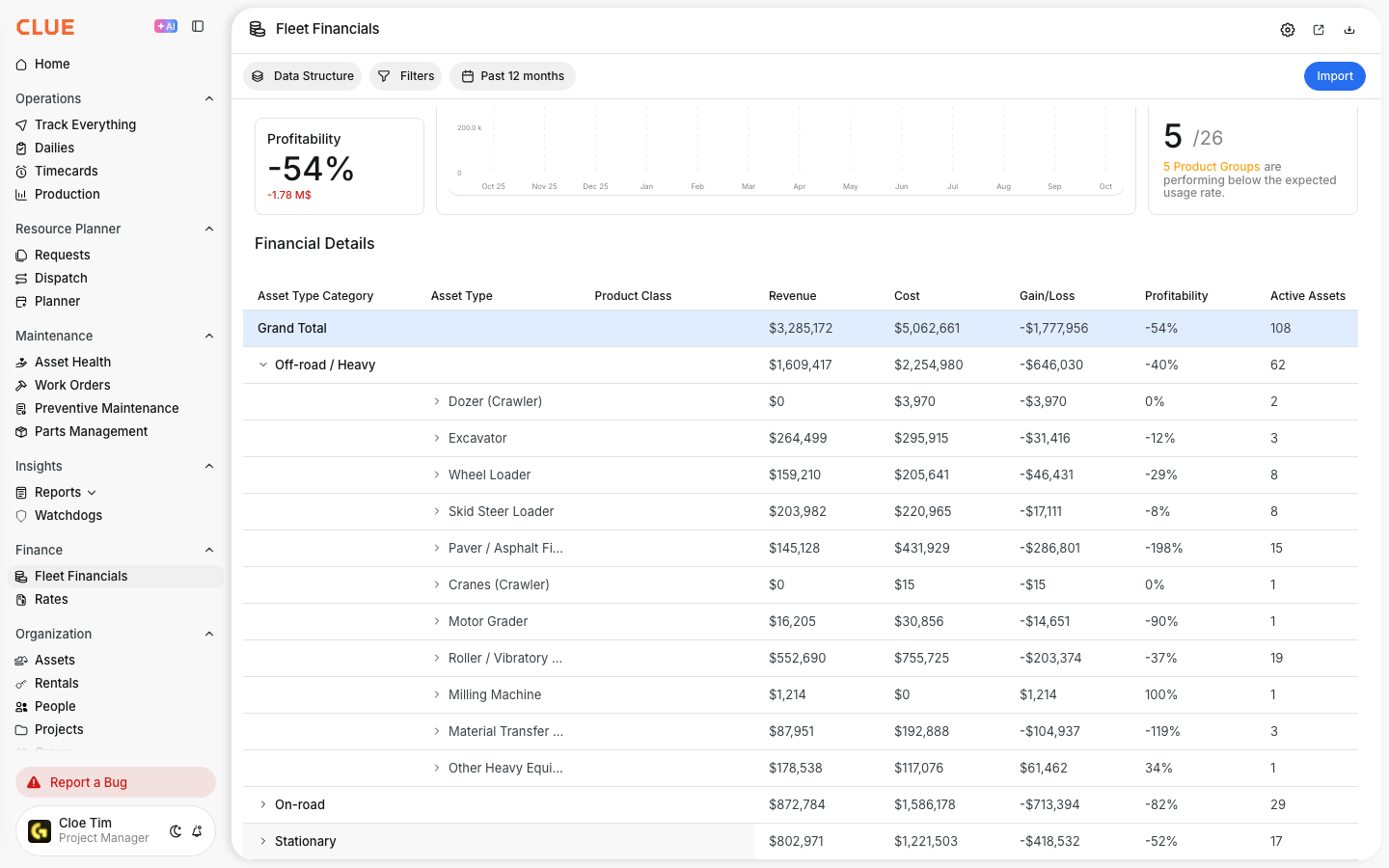
The Financial Details table lists divisions with revenue, cost, gain/loss, profitability, active asset count, and underutilized count. Click any division row to look deeper into its sub-locations and product classes.
4. Choose Your Data Structure
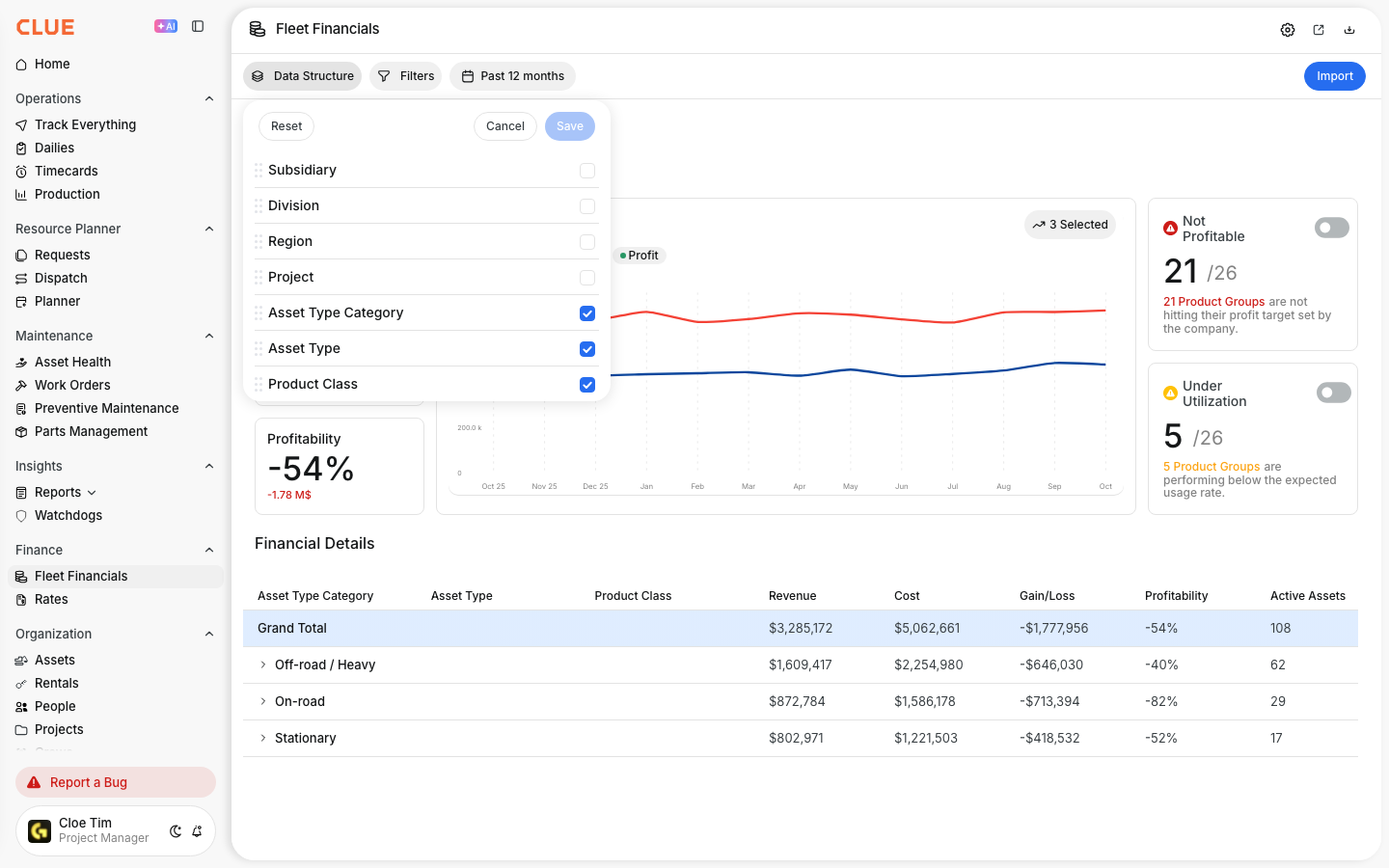
Click on Data Structure to change how the table is grouped. Options include Region, Division, Area, Project, Asset Type Category, Asset Type, and Product Class. Choose the structure that matches how your organization tracks financial performance.
5. Customize the Chart
Use the chart selector to choose which metrics appear on the trend chart. Available options include Fleet Summary covering Revenue, Total Cost, and Gain/Loss, as well as Ownership Costs covering Depreciation, and Operational Costs covering Fuel.

Key Behaviors and Limitations
- Works on the web app. Fleet Financials is available on the web app only.
- Data comes from CSV import. Fleet Financials does not pull financial data automatically. You upload it using the CSV template. The accuracy of the analysis depends on how current and complete your imported data is.
- Date ranges are flexible. Switch between Lifetime, Past 12 Months, This Year to Date, or a Custom Year to adjust the analysis period across all summary cards and the detail table.
- Export and sharing are built in. Download results as CSV or Excel directly from the page. You can also share the report by email without leaving the app.
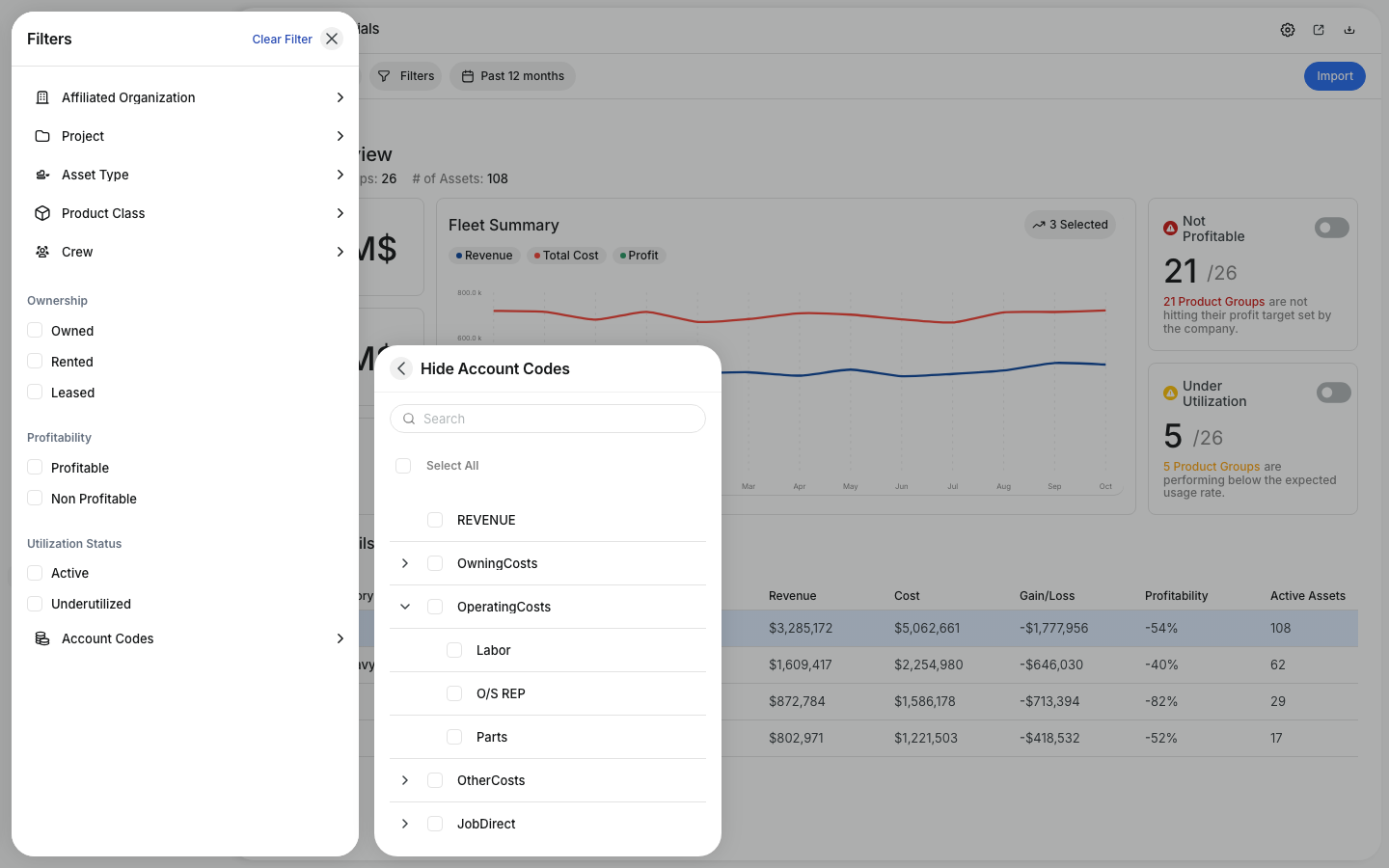
- Filters allow focused analysis. Filter by organization, project, asset type, crew, and ownership type to narrow the view to the segment you need.
Tips
- Start with the Not Profitable indicator. If a significant portion of your product groups are not hitting profitability targets, that is your starting point for investigation before looking at individual assets.
- Use Year to Date for current decisions, Lifetime for long-term trends. A machine losing money this year might be profitable over its full life, or the opposite. Looking at both timeframes together gives the most complete picture.
- Import data on a monthly cadence. The more current your financial data, the more useful the analysis. Importing once a quarter means you are making decisions on data that is potentially months out of date.
- Use Data Structure to match your reporting hierarchy. If your organization tracks performance by project rather than division, switch the grouping to Project so the table reflects how your finance team already thinks about cost allocation.
- Drill down to the asset level for the full picture. The Fleet Overview shows where performance is strong or weak at a high level. To understand why, drill into divisions and then individual assets using Fleet Financials: Asset-Level Analysis.