Clue to Vista: What Data Syncs Back
Clue to Vista: What Data Syncs Back is the outbound side of the Viewpoint Vista integration. When your team creates work orders, logs labor, records meter readings, or triggers location events in Clue, that data writes back to Vista automatically. No manual re-entry, no end-of-day exports, no duplicate data entry across two systems.
The sync covers four data types: work orders, meter readings, timecards, and location history. Each one flows from Clue into the corresponding Vista table on its own schedule without any manual step required from the shop or field team.
Who Is This For?
- Equipment Managers use this sync to ensure that work order costs, meter readings, and equipment records in Vista stay current without a separate data entry step after work is completed in Clue. Every job closed in Clue's equipment maintenance workflow feeds Vista automatically.
- Shop Managers rely on the sync to confirm that every work order closed in Clue, including its tasks, parts, and labor lines, has written correctly to Vista's equipment tables before accounting processes it.
- Mechanics log labor hours in Clue when closing jobs. Those entries sync directly to Vista's payroll batch table, removing the need to fill out paper time sheets or log hours in a second system.
How the Sync Works?
Step 1: Work orders write to Vista's equipment tables
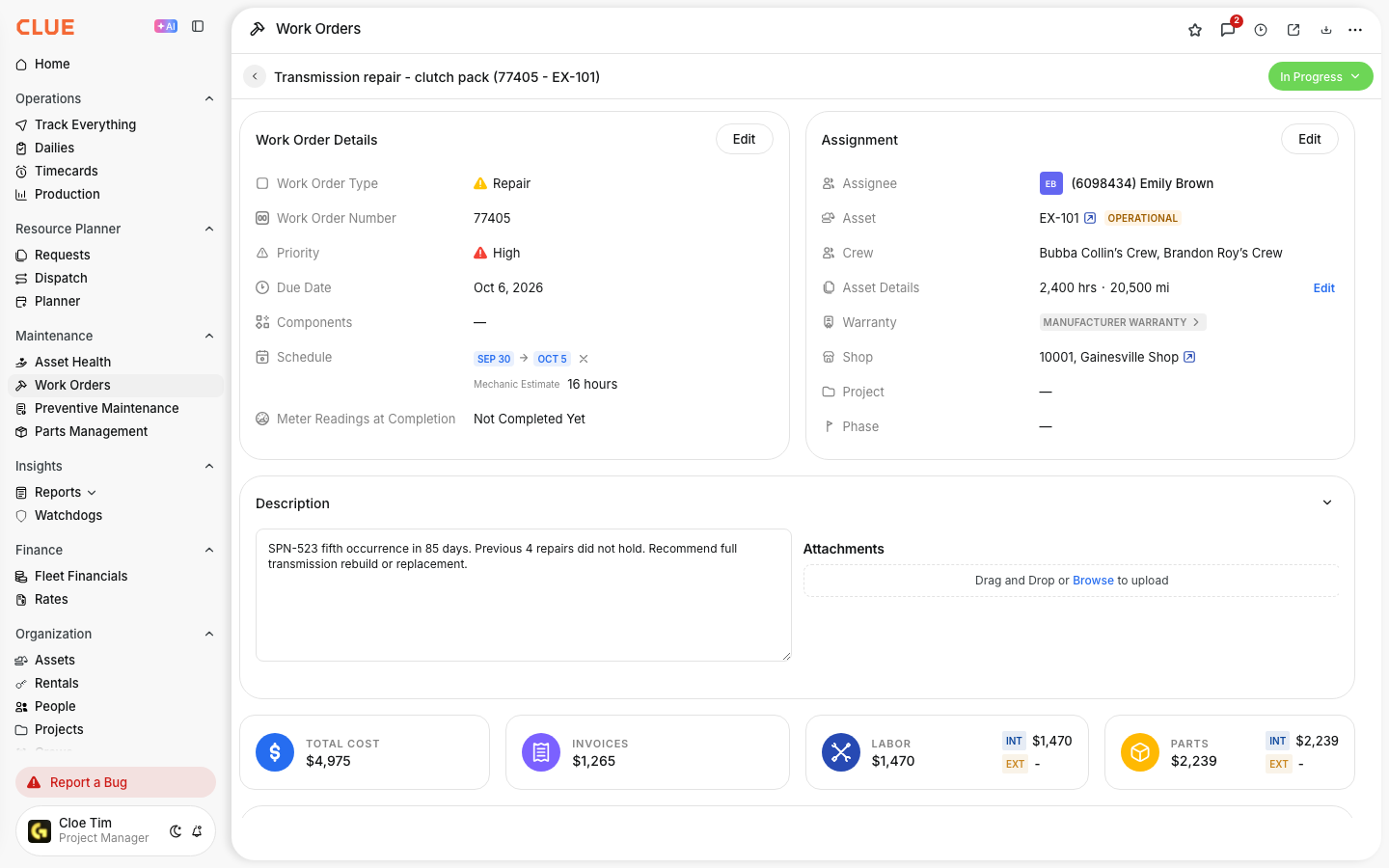
When a work order is created or updated in Clue, it writes to Vista's EMWH header and EMWI items tables. The following data transfers automatically:
- Work order number, equipment ID, assigned mechanic, description, start and end dates, and priority
- Each line item with description, quantity, cost code, and status
- Parts logged on the work order written to Vista's EMWP table with part numbers, quantities, and cost codes

Step 2: Meter readings post to Vista automatically
Engine hours and odometer readings logged in Clue go to Vista's EMBF and EMMR tables using Vista's own batch posting process. A mechanic logging hours from their phone in the field updates the equipment record in Vista the same way Vista's native tools would. Equipment records always reflect current hours and miles.
Step 3: Timecards sync to Vista payroll
Labor hours logged in Clue write to Vista's PRTB payroll timecard batch table. Each entry includes:
- Employee matched to Vista's PREH table by phone number
- Hours worked, pay code, and cost code
- Equipment worked on, plus project and phase
Payroll can process these timecards in Vista without any additional input from the shop.

Step 4: Location events write to Vista location history
When equipment enters or exits a geofence in Clue, the assignment event writes to Vista's EMLM location history table. This keeps Vista's location tracking aligned with Clue's GPS data without any manual logging.

Step 5: Monitor export status
Every export is logged in Clue's ExternalSystemKeys table with the Vista table, record key, and current status. If a sync fails due to a network issue or data validation error, Clue retries automatically and stores the failure reason for troubleshooting.
Key Behaviors and Limitations
- Export status is tracked for every record. The ExternalSystemKeys table stores the Vista table, record key, and current status for each item Clue attempts to sync. Failed exports are retried automatically and the failure reason is recorded.
- Timecard sync depends on a matched employee record. Clue matches mechanics to Vista's PREH table by phone number. If a mechanic's number in Clue does not match their PREH record, the timecard will not sync and no error appears to the mechanic.
- Cost codes must exist in Vista before syncing. If Clue sends a cost code that Vista does not recognize, the export fails. Default cost codes are configurable per work order type through global parameters.
- Certain work order types can be excluded from Vista export. If specific work order types should not flow to Vista, they can be filtered out through configuration. This applies to the entire work order type, not individual records.
- A testing mode is available. A testing flag using PRCo=99 lets your team verify exports without writing to production Vista data. Use this when setting up the integration or troubleshooting a specific sync issue.
Tips
- Check ExternalSystemKeys first when a work order is missing in Vista. The export_failed and export_reason columns show exactly what went wrong, which is faster than retracing the work order manually across both systems.
- Audit mechanic phone numbers before your first payroll run. Timecard export fails silently when the phone number in Clue does not match the PREH record in Vista. Catch mismatches during setup, not after a pay period closes.
- Set correct cost code defaults in global parameters before go-live. Each work order type should have a default cost code that already exists in Vista. Missing cost codes are one of the most common causes of failed exports.
- Use the testing flag when verifying new configurations. PRCo=99 lets you push test records through the full sync path without affecting live Vista data. Run a complete test cycle before switching to production.


