Using Search This Area
Track Everything
Reading Time:
3 min read
Overview
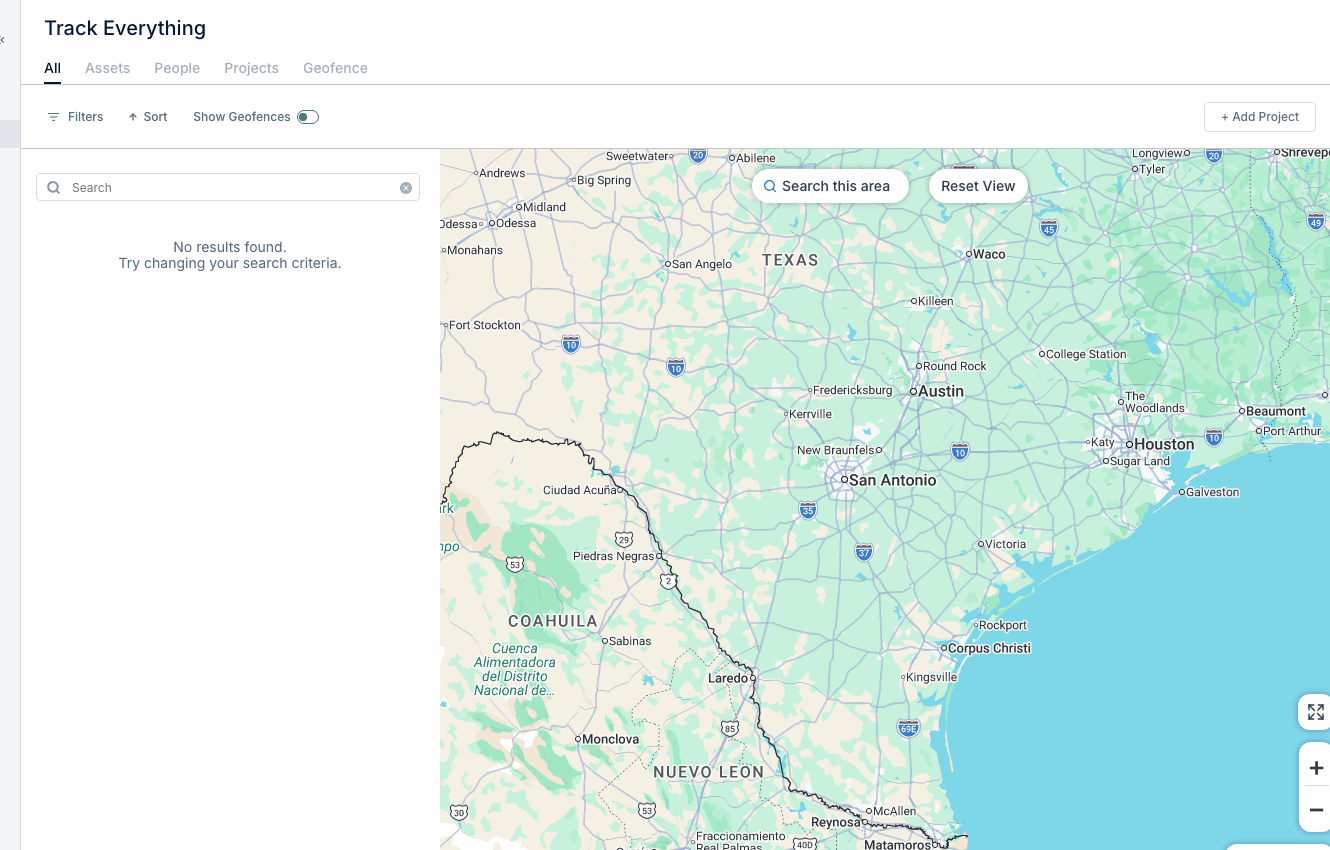
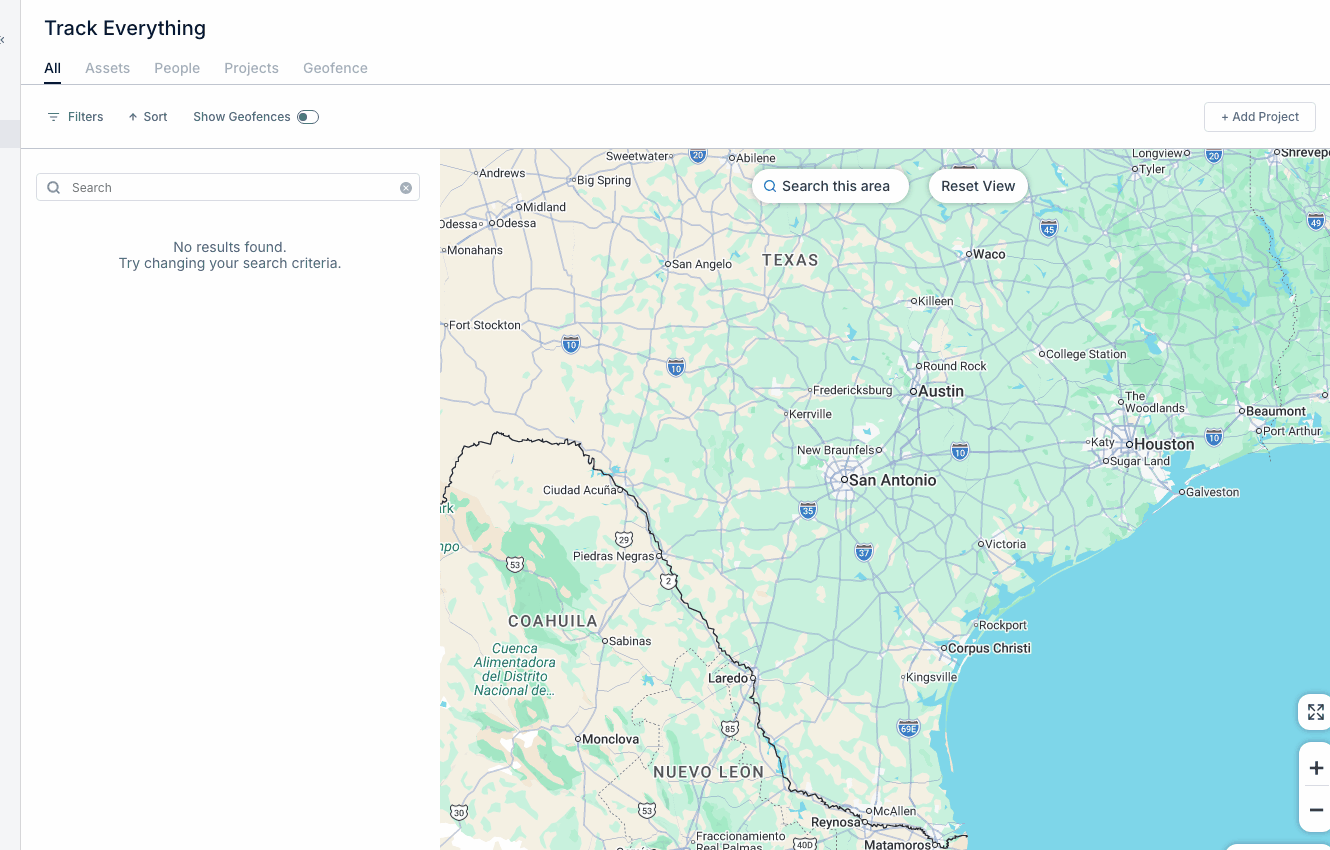
The "Search This Area" feature lets you find assets within the current map view. This is useful when you've navigated to a specific region and want to see what equipment is there.
How It Works
When you pan or zoom the map:
- The map view changes but asset markers may not auto-refresh
- Click "Search This Area" to load assets in the current view
- New markers appear for assets in that geographic area
Using Search This Area
Step 1: Navigate the map to your area of interest.
Step 2: Zoom to the desired level of detail.
Step 3: Click the "Search This Area" button.
Step 4: View assets that appear in the refreshed results.
Reset View
To return to your default fleet view:
- Click "Reset View" or the home icon
- Map returns to show all your assets
- Zoom level returns to default
When to Use This
- Looking for equipment in a specific city or region
- Checking what assets are near a potential job site
- Investigating an area after receiving a geofence alert
Large Fleets
For fleets with many assets:
- Search This Area helps focus on specific regions
- Prevents overloading the map with too many markers
- Improves performance when viewing dense areas
Tips
- Zoom in before searching to limit results
- Combine with filters for more targeted results
- Use Reset View to quickly return to full fleet view