Magnet Board: Visual Dispatch Overview
Dispatch
Reading Time:
4 min read
Overview
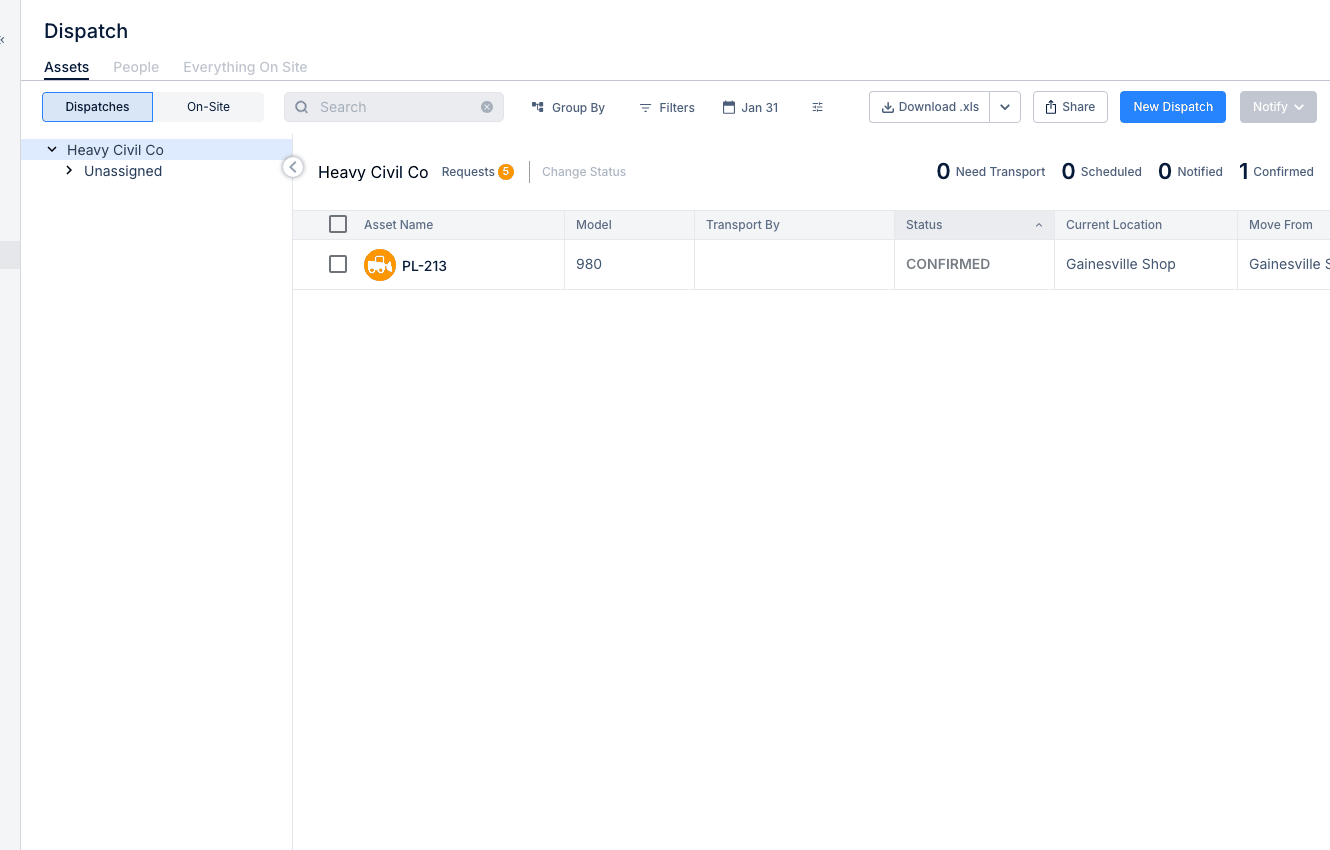
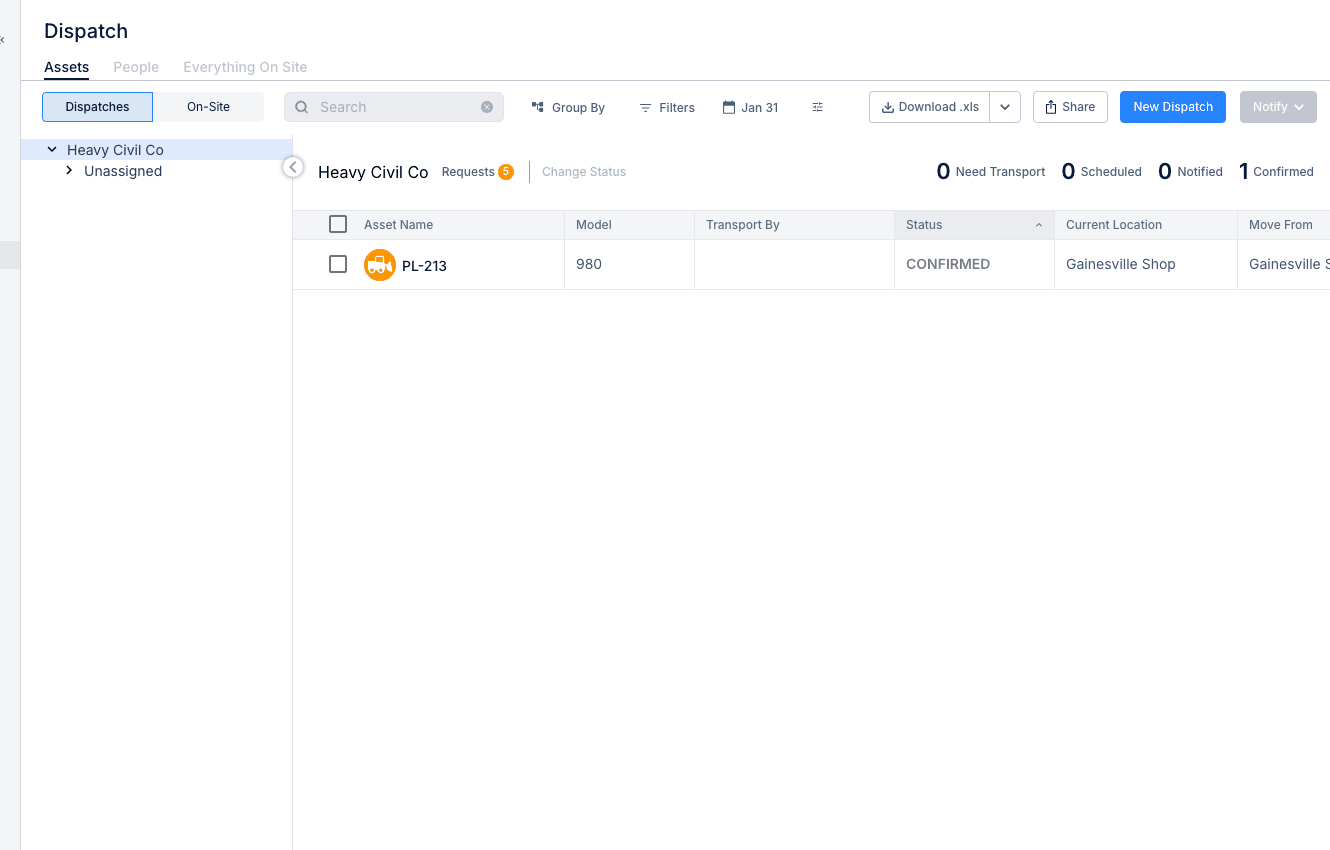
The Magnet Board is a new visual view in the Dispatch section. Instead of scanning rows in a table, you can see all your active projects as cards on a single board — with resources listed inside each card. Drag workers or equipment directly onto project cards to create dispatches instantly.
How to Access the Magnet Board
- Click Dispatch in the left navigation menu
- Click the Magnet Board tab in the tab bar
Understanding the Board
The board has three sections:
- Header bar (top) — Filters, Resource Type toggle (Assets or People), search, Collapse All
- Project cards (main area) — Each card shows a project and its currently assigned resources
- Resources panel (right side) — Available resources not yet assigned to any project. Can be toggled open/closed.
Assigning a Resource (Drag and Drop)
- Open the Resources panel on the right
- Find the resource you want to assign
- Drag the resource card and drop it onto any project card
- The dispatch is created automatically
Tip: A green highlight appears on a project card when it's ready to accept a drop.
Reassigning a Resource Between Projects
- Find the resource on its current project card
- Drag it to a different project card
- The assignment updates automatically — no modal needed
Bulk Assignment
- Check the checkboxes next to multiple resources in the Resources panel
- A floating action bar appears showing your selection count
- Drag any selected resource to a project card — all selected resources are assigned together
Updating Availability Status
- Click the status dot next to any resource name on the board
- Select the new status from the dropdown
- The status updates immediately
Filters and Search
- Search — Find projects or resources by name using the search box
- Filters — Filter by project, sub-organization, job title, asset type, or crew
- Collapse All — Minimize all project cards to get a high-level overview. Click again to expand.
Column Layout (Sub-Organization View)
If your organization uses sub-organizations, you can arrange the board into columns — one per sub-org. Click the column settings icon to show, hide, or reorder columns. Your preferences save automatically.
Tips
- Use the Resource Type toggle to switch between Assets and People views
- Hover over a project card to see upcoming scheduled arrivals and departures
- The Magnet Board is an additional view — your existing table view is still available in the other tabs