Finding Assets on the Map
Track Everything
Reading Time:
3 min read
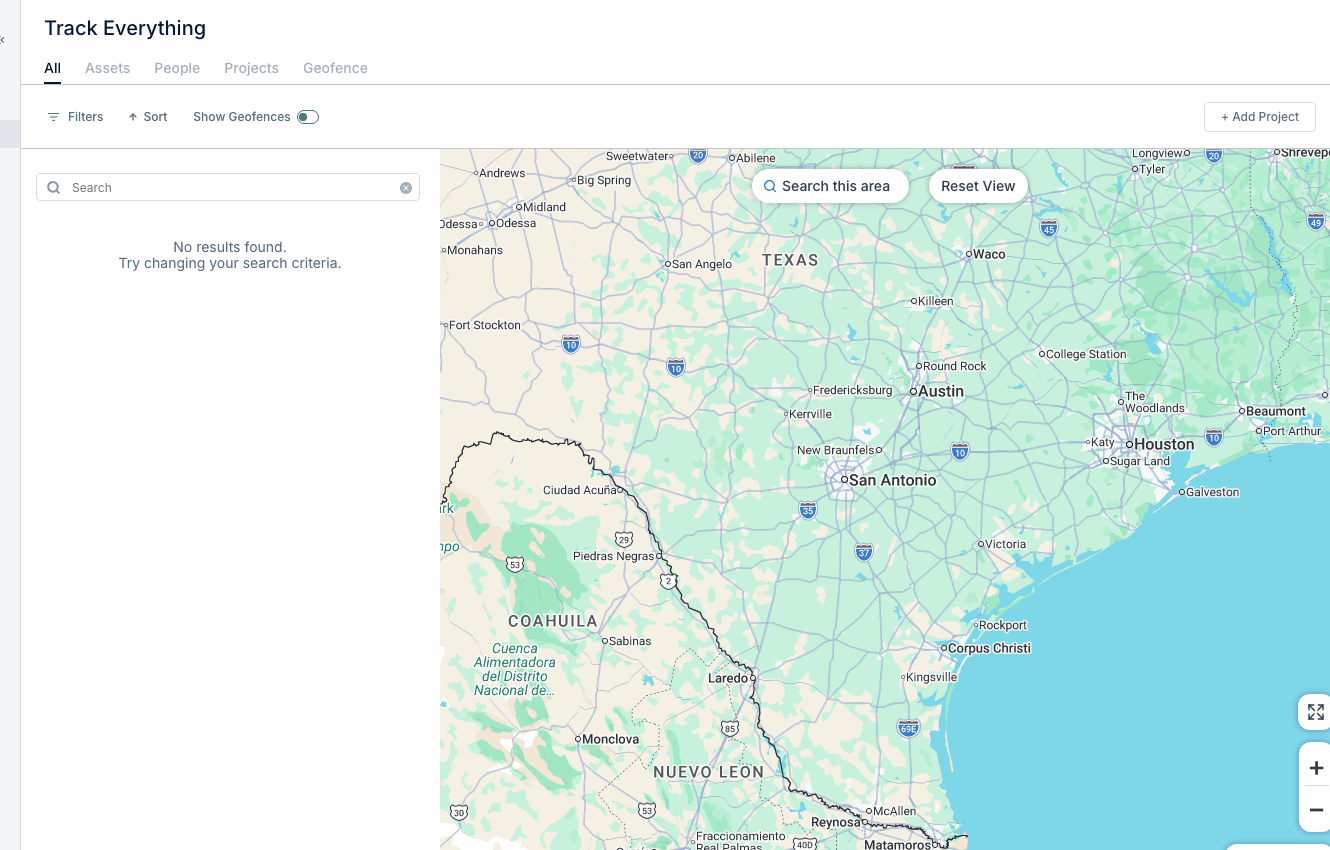
Quickly locate specific equipment using search and filters on the Track Everything map.
Using Search
- Click the search bar on the map
- Type asset name or serial number
- Select from matching results
- Map zooms to that asset's location
Filtering Assets
Use filters to show specific equipment:
- Asset Type - Show only vehicles, equipment, etc.
- Project - Assets at specific job site
- Division - By organizational unit
- Status - Active, idle, moving
Search This Area
After zooming/panning:
- Click Search This Area
- Map refreshes to show assets in current view
- Useful for finding equipment in a specific region
Asset Clusters
When assets are close together:
- They group into numbered clusters
- Number shows count of assets
- Click cluster to zoom in and see individuals
Tips
- Search by partial name for faster results
- Combine filters to narrow down quickly
- Use project filter when looking for site equipment