Filtering Requests by Date
Overview
The Requests page in the Resource Planner includes a Time Frame date picker that lets you filter requests by date range. However, this filter works differently than you might expect — and for good reason.
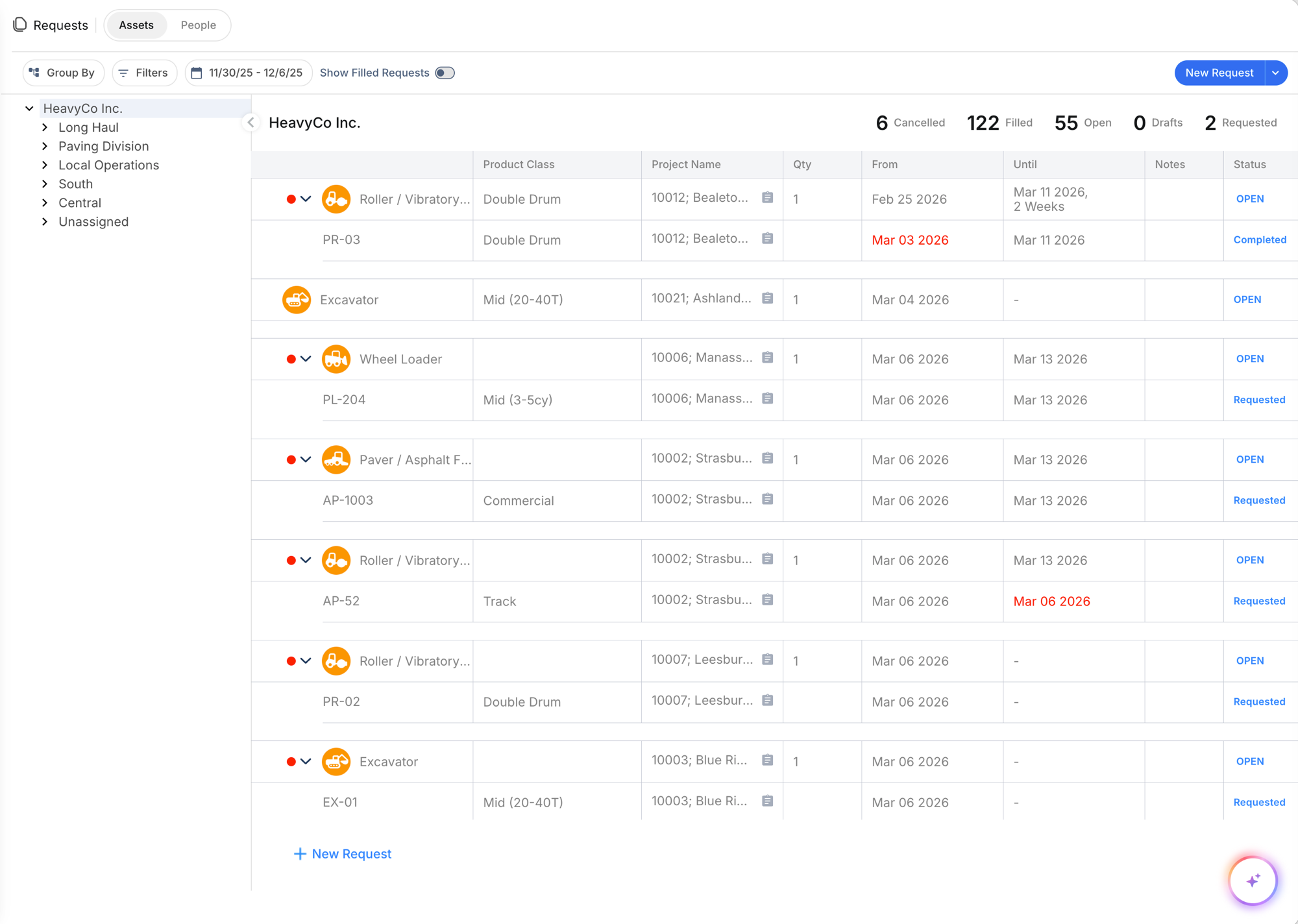
Key concept: Open (unfulfilled) requests always appear on the Requests page, regardless of the date filter. The date filter only affects which fulfilled or completed requests are shown.
How the Date Filter Works
When you select a date range using the Time Frame picker:
- Open, Requested, and Draft requests — Always visible. These are your active, unfulfilled requests that still need attention. They appear no matter what date range you select.
- Fulfilled and Cancelled requests — Filtered by date. Only fulfilled requests with delivery or return dates within your selected range will appear.
Why It Works This Way
This design ensures you never accidentally hide an active request that still needs to be fulfilled. Even if a request was created months ago, as long as it is still open, it will remain visible so your team can act on it.
Common Scenarios
Scenario 1: "I selected a past date but still see current requests"
This is expected. If you set the Time Frame to a past week (e.g., November 2025), you will see:
- All your current open requests (because they are still active)
- Any fulfilled requests from that November week
The open requests appear because they have not been fulfilled yet and still require action.
Scenario 2: "I want to see only requests from a specific time period"
To view only historical requests from a specific date range:
- Go to Resource Planner > Requests
- Click Filters
- Set the Status filter to show only Fulfilled requests
- Use the Time Frame date picker to select your desired date range
This combination hides all open requests and shows only the fulfilled ones within your selected dates.
Scenario 3: "I want to focus on what needs attention right now"
Simply use the default view — the Time Frame set to the current week or month. All open requests will be visible along with recently fulfilled ones, giving you a complete picture of current activity.
Quick Reference
Always visible (not affected by date filter):
- Open requests
- Requested requests
- Draft requests
Filtered by date range:
- Fulfilled requests — only shown if their dates fall within the selected range
- Cancelled requests — only shown if their dates fall within the selected range
Tips
- Use the Show Filled Requests toggle to quickly include or exclude fulfilled requests from your view
- The Time Frame presets (This Week, Last Week, Last 4 Wks) are a quick way to adjust your date range
- Combine the date filter with Status and Region filters for more precise results